Maymoune
Get your app installed: the QR code and 10 places to show it
An app only works if your customers install it. The QR code from the back office, the 10 places where it gets scanned most, and the line that makes people want to scan.
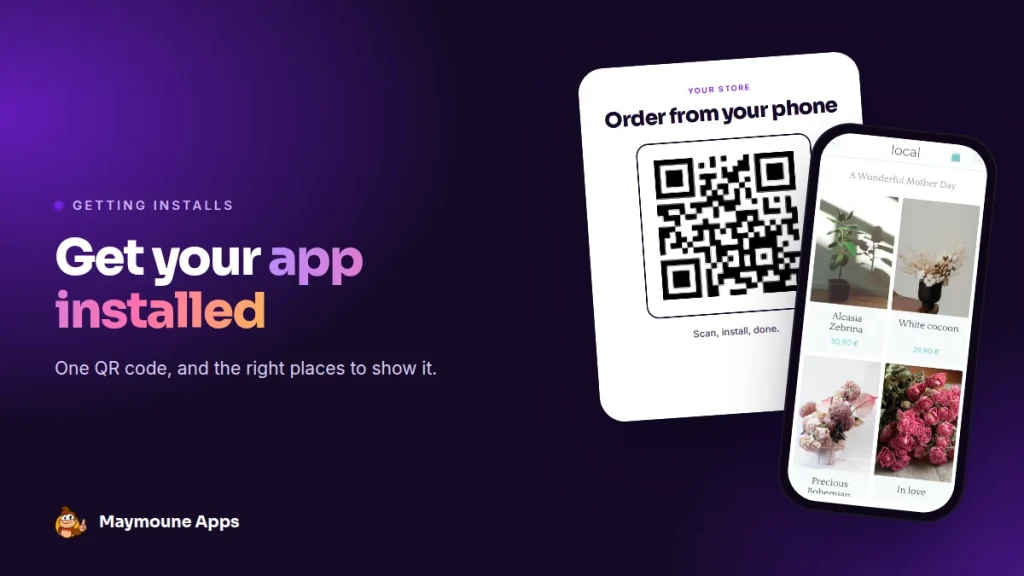
Your app is ready. Now comes the most important part: getting it onto your customers’ phones. The QR code is the simplest way, as long as you put it in the right place, with the right words.
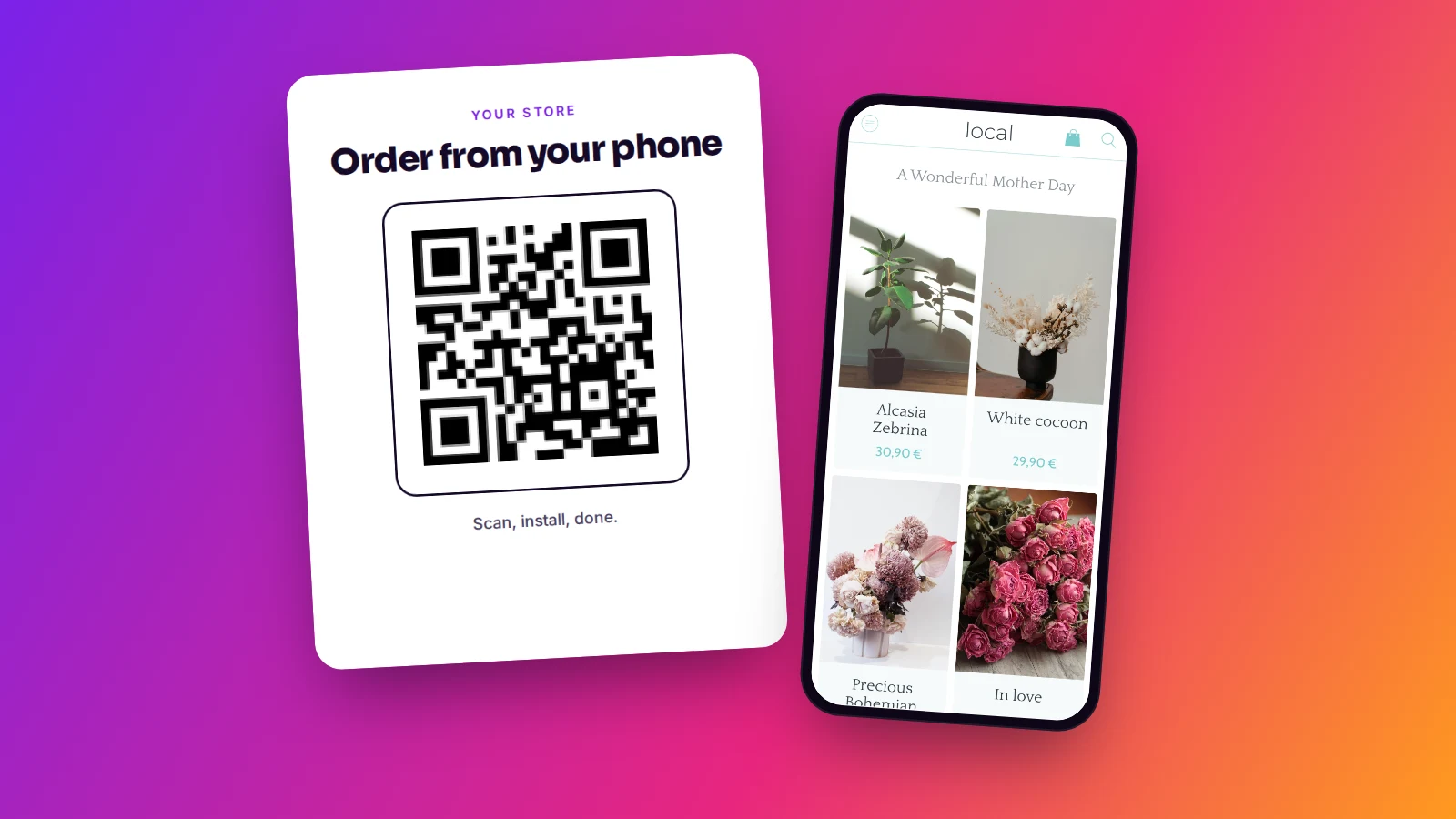
A customer is waiting at the till. Phone in hand, like almost everyone in a queue. In front of him, on the counter, a small sign: “Order from your phone, scan here”. Three seconds later, your app is on his screen.
Here is how to get that QR code, where to show it, and what to write next to it.
The QR code in the back office
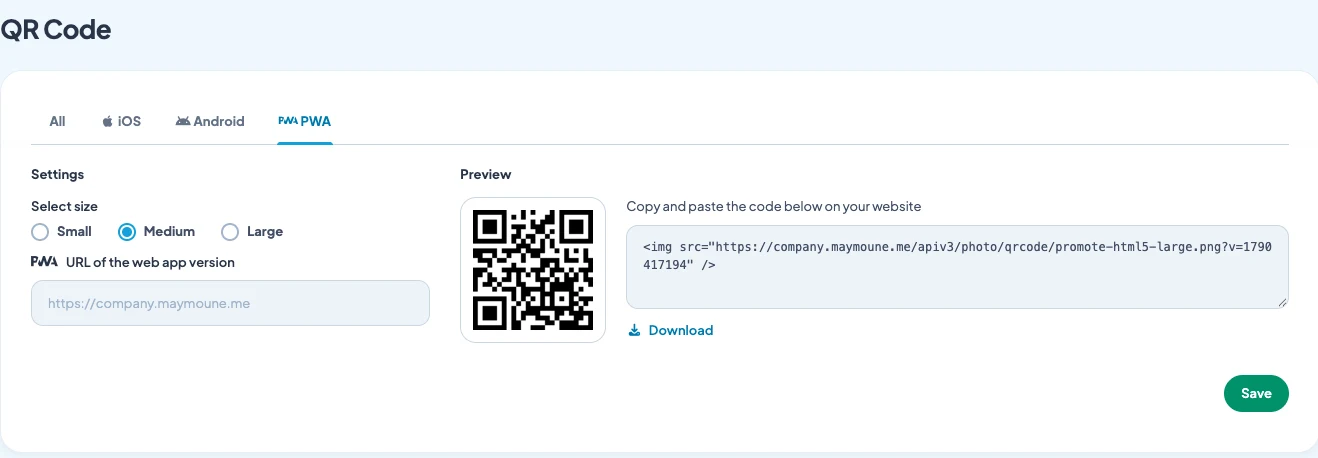
In the back office, the QR Code page gives you a ready-to-use code. You choose:
- The version: one code for all devices, or a code for iPhone, Android or the web app.
- The size: small, medium or large, depending on the medium.
- The format: an image to download for the printer, or a line of code to paste on your website.
Right next to it, the Share page posts your app’s link on Facebook or X in one click.
The line that makes people scan
A QR code on its own says nothing. Nobody scans “Download our app”. People scan to get something. Write the benefit, not the feature:
- “Order from your phone, skip the queue”
- “10% off your first order in the app”
- “Be the first to hear about new arrivals”
- “Book your next appointment in two taps”
10 places to show the QR code
Inside your business
- The counter or till: the customer is waiting and has time.
- The shop window: for people passing when you are closed.
- Tables or the waiting room: at the restaurant, the practice, the hairdresser.
- The receipt: it leaves in the customer’s pocket.
- The bag, box or packaging: whoever receives the gift discovers you too.
Outside your business
- Your business card: on the back, where there is room.
- Flyers and posters: trade fairs, markets, events.
- Your website: with the code to paste, the QR code shows on the page of your choice.
- Your email signature: every message becomes an invitation.
- Your social networks: the link in your bio, and a pinned post with the QR code.
And after the install?
The install is only the start. What brings customers back are notifications: a new arrival, an offer, a reminder. Send a first welcome message within the week, with the code promised on your sign.
Notifications are unlimited, in every plan. The full guide is in the article on push notifications.
How much does it cost
The QR code, the share page and notifications are included in all three Maymoune plans:
- Starter, €19 a month: your web app, installed from a link or a QR code.
- Ultra, €59 a month: the same, plus the iPhone, iPad and Android app on the stores.
- Ultra lifetime, €2,999: a one-time payment, with publishing on the App Store and Google Play included.
My advice: start with one place, the counter, for two weeks. See how many people install the app, then add the receipt and the packaging. Plan details are on the pricing page.
Maymoune Apps
Your app, installed in one scan
Three plans, every feature included, no commitment.
✓ Downloadable QR code
✓ Code to paste on your website
✓ Unlimited notifications
✓ Support included
To go further: the difference between a web app and a store app is explained in the article PWA or mobile app, branding in the one on an app that looks like you, and an example of QR codes on boxes in the one on the pizzeria app. Other questions are answered in the FAQ.
Frequently asked questions
Where do I find my app’s QR code?
In the back office, on the QR Code page. You choose the version and size, then download the image or copy the code for your website.
Is one QR code enough for iPhone and Android?
Yes. The back office offers one code for all devices, and a dedicated code for each version if you prefer.
Do I need to be on the stores to use the QR code?
No. With the Starter plan, the QR code opens your web app, which the customer adds to their home screen. The stores come with the Ultra plan. Details are on the pricing page.
What size should I print?
At least 2 cm wide on a business card, 5 cm on a counter sign, and larger in a shop window so it can be scanned from a distance.
How do I make people want to scan?
Write the benefit next to the code: order without waiting, a discount on the first order, hearing about news first. A QR code without a line is rarely scanned.
Up next
 News of Maymoune
 What to post in your app: 30 content and message ideas
A lively app brings your customers back. 30 concrete content and notification ideas, sorted by trade, and a simple rhythm to keep…
4 min read6 Oct 2026 News of Maymoune
 Build a mobile app in 7 steps, without coding
Pick a template, organise sections, brand it, fill it, test, publish on the web then on the stores: the 7 steps to…
4 min read6 Oct 2026 News of Maymoune
 An app for your spa or beauty salon: treatments, rituals and bookings
Your treatment menu with length and price, your rituals, online booking, a gift voucher request and a message when a slot opens…
4 min read5 Oct 2026