Maymoune
Create a form in your app: quotes, sign-ups, surveys
A quote request with a photo, a workshop sign-up, a satisfaction survey: the form is built in a few clicks and answers arrive by email. With the real back office screens.
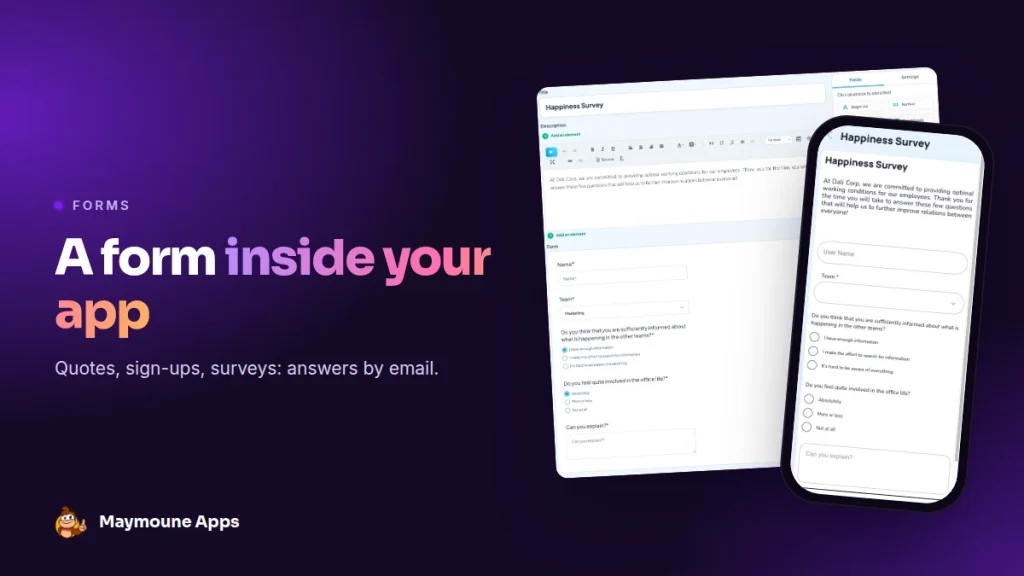
A good form saves you ten back-and-forth phone calls. In your app, you build it block by block, and each answer lands in your inbox, complete and readable.
A customer calls you for a quote. You ask for the measurements, he doesn’t have them. He calls back the next day, then sends a photo by message, then forgets to mention the date he wants.
With a form in your app, he fills in everything at once, photo included, whenever it suits him. Here is how to create it, with the real back office screens.
What a form in an app is for
- A quote request: a tradesperson, a caterer, a florist for a wedding.
- A sign-up: a workshop, a course, a club outing, volunteering.
- A survey: customer satisfaction, team mood, a first assessment before an appointment.
- An application: a job, an internship, with the CV attached.
Building the form
In the back office, the form takes shape on the left, and the blocks to add are on the right. One click on a block, and the field appears. You write the question and make it required or not.
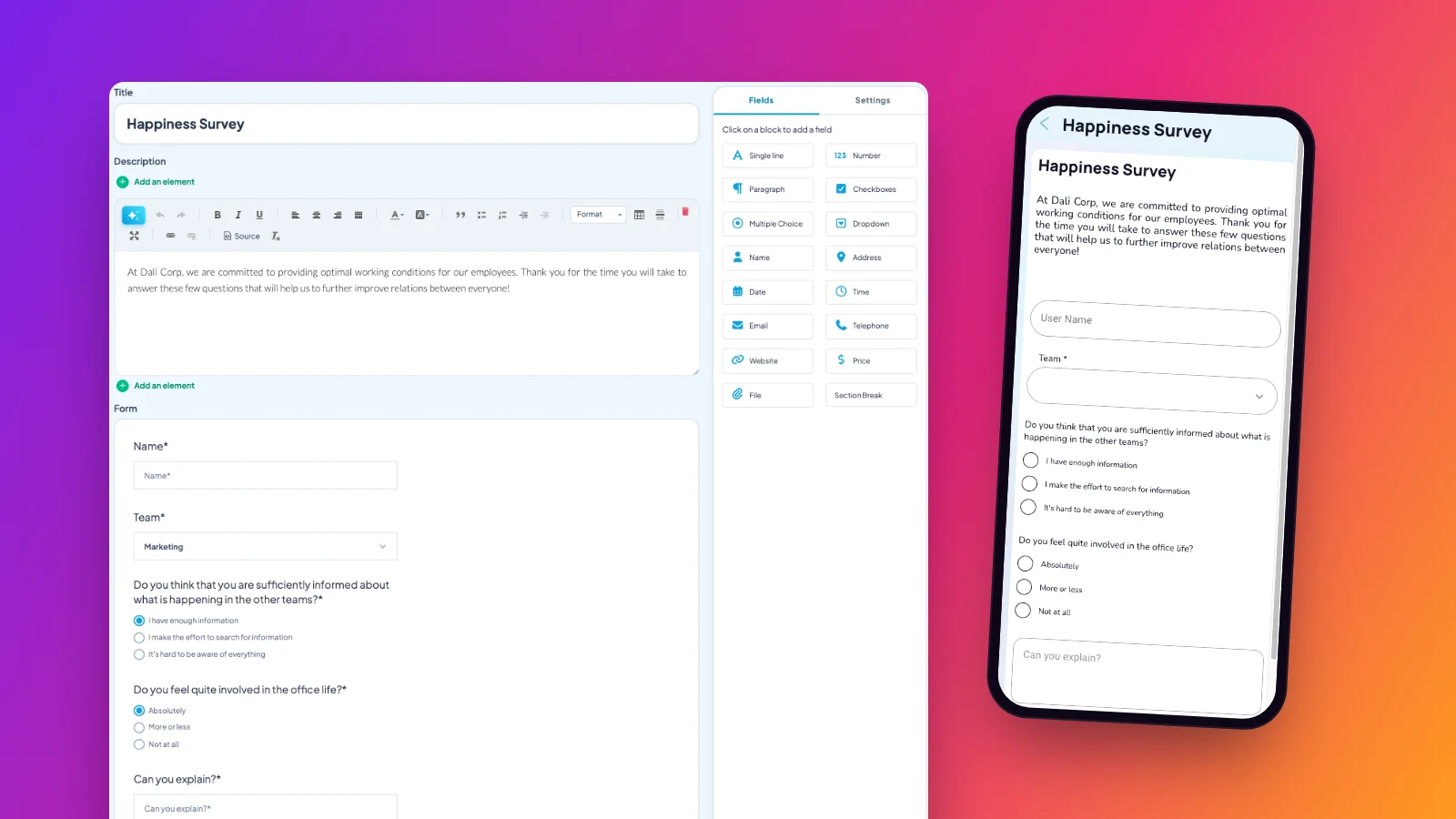
Sixteen field types are ready:
- Text: single line, paragraph, number.
- Choices: checkboxes, multiple choice, dropdown.
- Contact details: name, address, email, phone, website.
- Dates: a date, a time.
- The rest: a price, a file to attach, and a section break to split a long form into parts.
The file field changes everything for a quote: the customer attaches a photo of the wall to paint or the garden to maintain, and you price it without travelling.
Receiving the answers
In the Settings tab, you enter the email address that receives the answers. You also customise what the person sees:
- the submit button text, for example “Get my quote”;
- the success message, and the error message;
- a confirmation window before sending;
- the page they land on once the form is submitted.
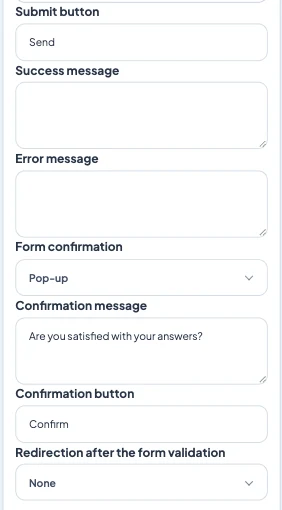
My advice: redirect to a useful page, such as your portfolio or your prices. Someone who just asked for a quote is at the best moment to discover the rest.
Good practice
- Few questions: five to seven fields are enough. Every extra question loses answers.
- Choices rather than free text: a dropdown is filled in one second on a phone.
- An introduction line: say why you ask these questions and when you will reply.
- A button that says what happens next: “Get my quote within 48 hours” beats “Send”.
Already using Typeform, JotForm or Airtable? Each has its own section, and your existing form shows as it is. All the possible connections are in the article on automatic content.
Getting the form filled in
A hidden form is useless. Put it in the menu, add a button on the home screen, and send a notification the day you open it: “Sign-ups for the spring course are open.” Notifications are unlimited, in every plan.
How much does it cost
Forms are included in all three Maymoune plans:
- Starter, €19 a month: your web app, installed from a link or a QR code.
- Ultra, €59 a month: the same, plus the iPhone, iPad and Android app on the stores.
- Ultra lifetime, €2,999: a one-time payment, with publishing on the App Store and Google Play included.
Plan details are on the pricing page.
Maymoune Apps
Your requests arrive already filled in
Three plans, every feature included, no commitment.
✓ 16 field types, file upload included
✓ Answers received by email
✓ Unlimited notifications
✓ Support included
To go further: a team mood survey is shown in the article on internal communication, a wedding request in the one on the florist app, and writing messages in the one on push notifications. Other questions are answered in the FAQ.
Frequently asked questions
Where do form answers go?
By email, to the address you enter in the form settings. You can change it at any time.
Can the customer attach a photo or a document?
Yes. The file field lets them attach a photo, a plan or a CV straight from the phone.
How many forms can I create?
As many as your available sections, up to 120 per app. A quote form, a sign-up form and a survey can live side by side.
Can I use an existing Typeform or JotForm?
Yes. Typeform, JotForm and Airtable each have their own section, and your form shows as it is in the app.
Are forms included in the subscription?
Yes, in all three plans, at no extra cost. Details are on the pricing page.
Up next
 News of Maymoune
 What to post in your app: 30 content and message ideas
A lively app brings your customers back. 30 concrete content and notification ideas, sorted by trade, and a simple rhythm to keep…
4 min read6 Oct 2026 News of Maymoune
 Build a mobile app in 7 steps, without coding
Pick a template, organise sections, brand it, fill it, test, publish on the web then on the stores: the 7 steps to…
4 min read6 Oct 2026 News of Maymoune
 An app for your spa or beauty salon: treatments, rituals and bookings
Your treatment menu with length and price, your rituals, online booking, a gift voucher request and a message when a slot opens…
4 min read5 Oct 2026